Add up to five photos and a note to one meal in Musclog
Until now, the AI meal camera in Musclog worked in one step: take a photo, get an estimate. If you wanted the AI to know something a photo cannot show, like “I ate half” or “this came from a restaurant”, you had to type it before the shutter, with a small button next to it. Most people never tapped it, and I do not blame them. When you are hungry you take the photo and move on.
So the order changes. Take the photo first, add context after.
The new flow
- Take a photo (or pick one from your gallery) and crop it, like before.
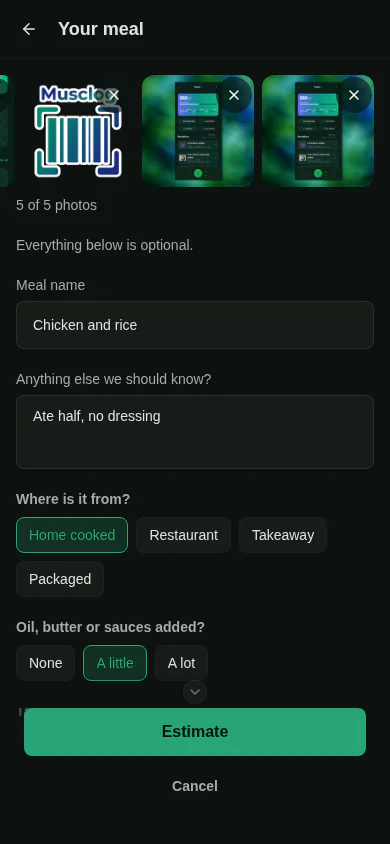
- A sheet opens with a sideways strip of the photos you have so far.
- Tap + to go back to the camera and add another photo of the same meal. Each one is cropped and joins the strip. The limit is five.
- Add anything you want to tell the AI. All of it is optional.
- Tap Estimate.
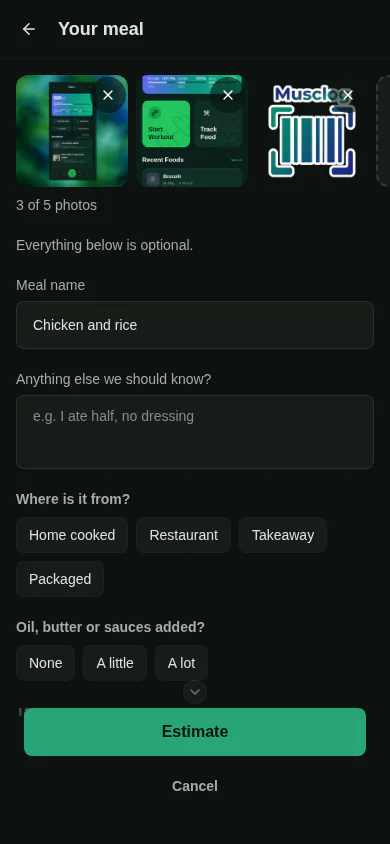
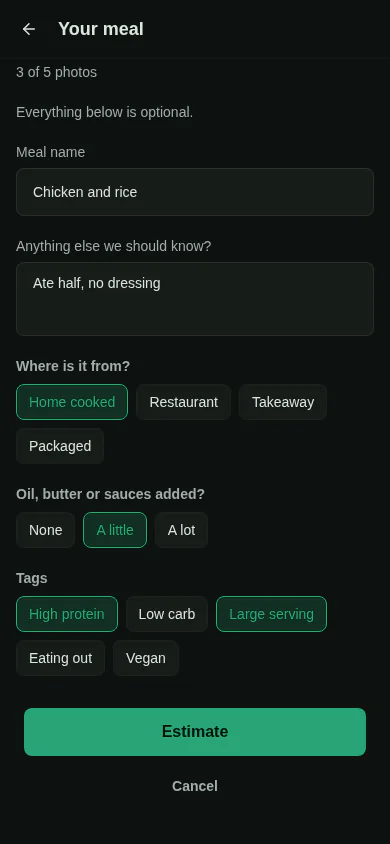
What you can add:
- A name for the meal. If you type one, it replaces the name the AI would have picked.
- A note in your own words, like “ate half, no dressing”.
- Where it is from: home cooked, restaurant, takeaway or packaged. Restaurant and takeaway portions tend to be bigger than home ones, and the AI is told so.
- Whether oil, butter or sauces were added. Cooking fat is the calorie a photo hides best.
- Quick tags such as high protein or eating out, the same ones the old context button had.
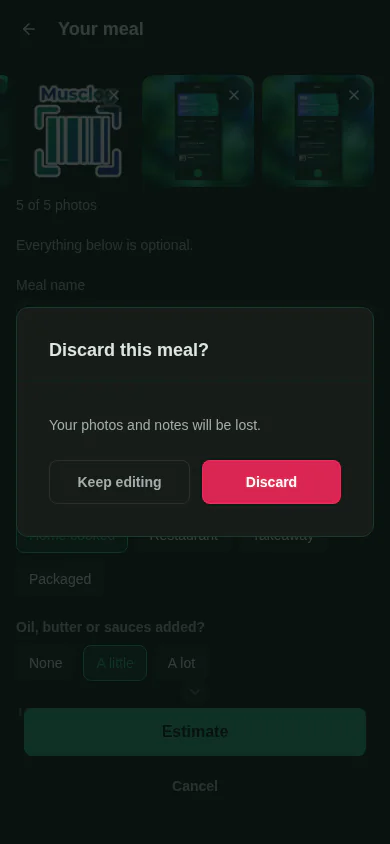
If you close the sheet with something filled in, Musclog asks before throwing it away. If the estimate fails or you cancel it while it runs, the sheet comes back exactly as you left it, with the reason on top, so nothing you typed is lost.
What the AI is actually sent
All the photos go in one request, together with your name, note and chips. The request also tells the model that the photos show one meal from different angles, and that a food visible in two of them is still one food. A photo can be a close-up, the other side of the plate, or the menu or a label, and the model is told it may use those as information.
It works the same way at every thinking level. In the higher levels, which make several requests (a first look, independent estimates, reviews), every one of those requests carries all the photos. The photos are resized once and reused, so a level that asks six times does not re-encode them six times.
Two honest costs:
- More photos are more image tokens on every request. On Musclog Iron that is more of your monthly allowance, and with your own key it is more on your bill. I have not measured how much a second or third photo improves the estimate. They help most when one photo hides something, like the far side of a bowl.
- How many photos fit is up to the provider. Musclog asks, and shows only as many slots as the provider takes. On Musclog Iron the photos also share one request size limit, so with several photos each may be sent a bit smaller than a single photo would be.
On your phone, one photo at a time
The AI model that runs on your phone can look at one image per request. So with several photos it looks at each one separately, writes down the foods it sees and a rough amount of each, and Musclog merges the lists in code. A food that shows up in more than one photo counts once, at the largest amount any photo suggested. I do not add them up, because photos of the same plate overlap: two photos of one chicken breast are not two chicken breasts. As with a single photo, you review every food and gram amount before anything is saved.
Only the first photo is kept
The meal you log gets a picture, and that is the first photo in the strip. The others are used for the estimate and are not stored with the meal.
Prefer the old way? It is a setting
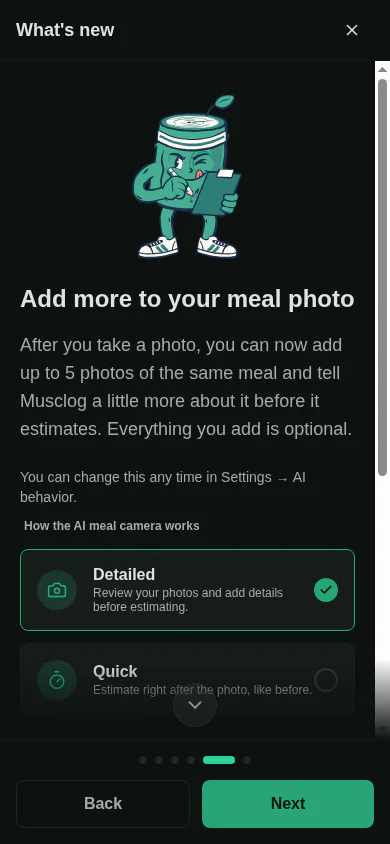
The new flow is the default. If you would rather take a photo and get an estimate straight away, switch to Quick in Settings → AI behavior → AI meal camera. Quick keeps the old behavior, including the context button before the shutter.
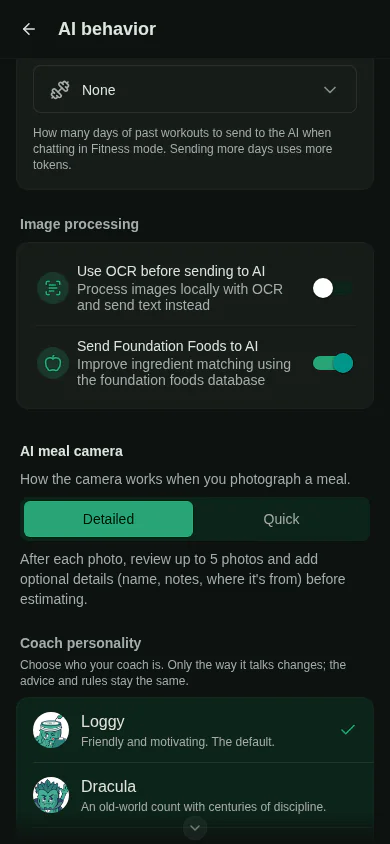
The same choice is a page of the What’s new tour, so you can pick without hunting for the setting.
Musclog is open source. The AI meal camera needs an AI provider set up in Settings, and the on-device model needs the photo-understanding part of its download.
