Moving your workout history from Strong, Hevy or FitNotes
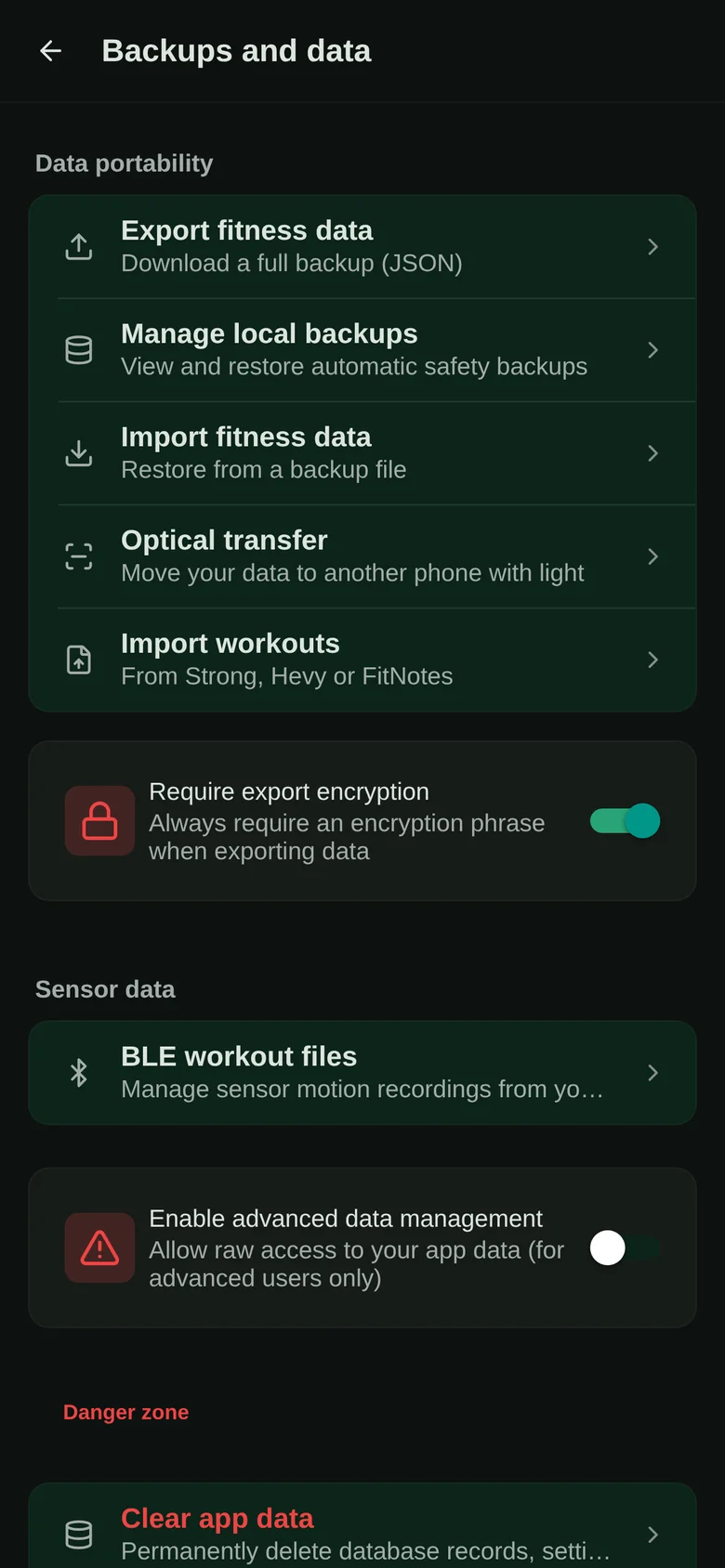
You can move your workout history into Musclog from a CSV file exported by Strong, Hevy or FitNotes. Open the app, go to Settings, then Backups and data, then Import workouts, and choose the file. Musclog reads it on your device, matches the exercise names to its own catalogue, asks you about anything it cannot match, and shows a review before a single session is saved. For each app’s own export, use that app’s help pages, because the menus change. Musclog only reads the CSV file once you have it.
Get the file
Export your workouts as CSV from the app you are leaving, using its own export option. Each app’s help pages describe where that option is, so check them rather than relying on a copy of its steps here. Keep the file on your phone or computer, then choose it from Musclog’s import screen. Musclog reads the file on your device, so the file itself does not have to be uploaded anywhere.
Musclog recognises three apps: Strong, Hevy, and FitNotes. FitNotes has two export layouts, and Musclog reads both. Musclog finds the columns by their names, not their positions, so a column in a different order still reads. If a file is none of these, or its headings are missing, Musclog says so instead of guessing what the columns mean.
Walk through the import
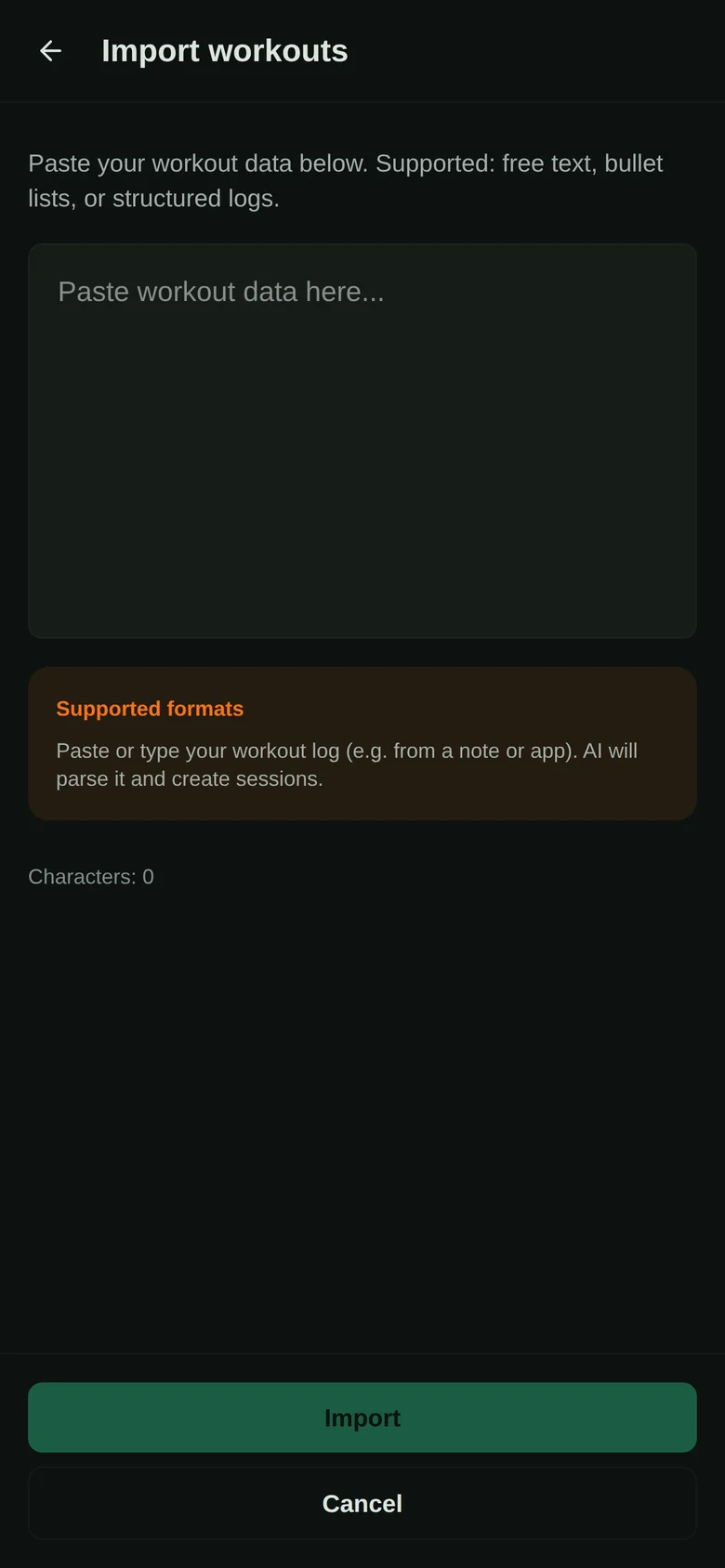
- Open Settings, then Backups and data, then Import workouts. You can also paste text instead of choosing a file.
- Choose the CSV file.
- If the file does not say whether weights are in kilograms or pounds, Musclog asks. It shows you how the first weighted set would be saved, so you can check before continuing.
- Review the list of exercise names.
- Review the sessions, then save.
Matching exercise names
Musclog matches each name in the file to an exercise in its catalogue, in this order: a match you saved before, an exact name match, a table of how these apps name common lifts, and then a single unambiguous match. It never guesses between exercises that look alike.
Anything it cannot settle waits for you. For each unmatched name you can:
- pick an existing exercise from the catalogue,
- create a custom exercise with that name, or
- skip the name.
Save stays disabled until every unmatched name has a choice. Your choices are remembered, so a second import with the same names does not ask again. A name you have settled shows as one row, so a long file stays readable. If you change your mind about a choice, you can clear it, and Musclog puts back its own suggestion.
Review before anything is saved
The review lists the new sessions, the number of sets for each exercise, and any rows that could not be read. A row that cannot be read is counted and reported, not silently dropped. Nothing is written until you save, so you can go back and change a choice first. Rest-timer rows from Strong are ignored on purpose, so they do not appear as sets.
Importing the same file twice
Musclog gives each session a key built from the date text and the workout name in the file, so the same file produces the same keys on any phone. Importing the same file again does not duplicate sessions, and a file that overlaps an earlier one only adds the sessions you do not already have. If you delete a session by hand, a later import of the same file brings it back, because a deleted session no longer counts as present. Your saved exercise choices still apply, so a second import does not ask about the same names again.
Undo an import
Each import can be undone from the list of past imports. Undo removes the sessions that came from that import. Custom exercises you created during the import stay in your library, because you may use them elsewhere.
What does not map one to one
Some information has no equivalent in Musclog, and the import keeps it honest rather than inventing it:
- Day-only dates. Some exports record only the day. Musclog stores those sessions at local noon, so the workout stays on the right day, and it has no duration.
- Timed sets. A plank or a timed carry has no reps. Its time and distance go into the exercise note, not into invented reps.
- Sets without an effort rating. A set with no RPE is stored as unrated. It is not treated as zero reps in reserve, which would mean you failed the set.
Cardio with a distance, such as a walk or a run, comes in as a cardio log with no sets.
The exercise library lists every exercise Musclog can match your names to. For how Musclog compares with Strong and Hevy, see those pages.
You can get Musclog and try the import with a short file first.
